
What If Your Meeting Follow-Ups Were Automatically Done?
Build an AI meeting companion with Copilot Cowork that captures action items, researches open questions, answers them, creates documents, and drafts your follow-up email after every meeting -- automatically.
COPILOT COWORKMICROSOFT 365 COPILOTAI AGENTS
6/2/20269 min read
What We Are Solving For
Most meetings end the same way. You walk out with a mental list of things to do, questions no one knew the answer to, and a follow-up email that needs to get written. Then the next meeting starts.
The custom Copilot Cowork skill in this post changes that. One prompt after a meeting ends, and Copilot Cowork takes over. It reads the transcript, identifies every action item, searches your SharePoint sites, OneDrive, emails, and Teams messages to answer open questions, creates the supporting documents, and drops a fully drafted follow-up email in your Outlook drafts folder -- with everything attached. You can even automate it so it runs everyday at 5pm or whatever time/day you select.
The demo in this post used a 15-minute ad hoc Teams call that never made it onto the calendar. Cowork found it, read it, and produced an action plan, a safety protocol document, and a draft email in one unattended run.
Watch the Full Walkthrough First
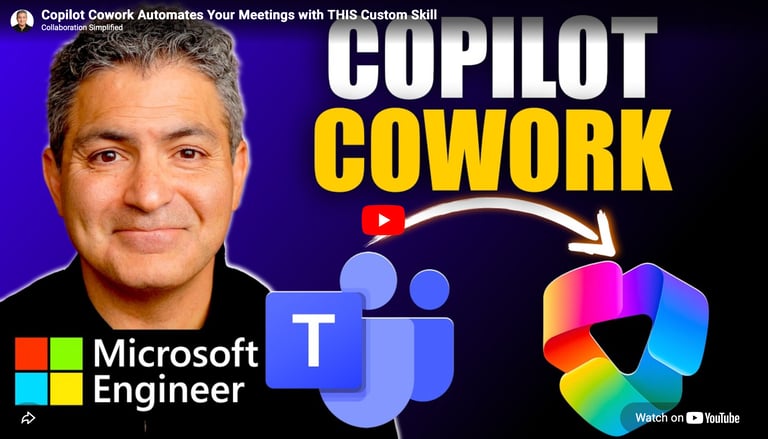
Before building anything, watch the video. It shows the skill running in real time -- including how Cowork handles an ad hoc call that only existed in Teams chat, how it tracks down answers across SharePoint and OneDrive, and what the finished output actually looks like inside Outlook.
That context makes the setup steps below much easier to follow.
The Meeting Action Plan Recipe
The easiest way to get this skill installed is to let Cowork do it for you. Open a new Cowork task, tell it you want to build a custom skill, and paste in the recipe below. Cowork will create the folder structure in OneDrive, generate the SKILL.md file, and save everything in the right place automatically.
Copy everything between START COPYING and STOP COPYING and paste it into a new Cowork task to get started.
--- START COPYING
Using the details below create a custom skill that I can run against my meetings.
name: meeting-action-plan
user-invocable: true
description: |
After a scheduled or ad-hoc meeting ends, captures decisions and action items,
searches SharePoint, OneDrive, emails, and Teams for answers, researches any
remaining open questions, creates supporting deliverables, then drafts the
follow-up email with all documents attached.
Handles both calendar-scheduled meetings and unscheduled Teams calls.
triggers:
- "action plan for my last meeting"
- "post-meeting follow-up"
- "meeting recap and action items"
- "what came out of that meeting"
- "summarize that call and create action items"
- "meeting action plan"
---
# Meeting Action Plan
## Step 1 — Identify the meeting
Check both of these sources to find the most recent meeting:
1. Calendar — Look at my recently completed calendar events (last 3 hours).
2. Teams calls — Check my recent Teams chats for any ad-hoc calls or
unscheduled meetings that may not appear on my calendar. These show up as
call events within Teams chat threads.
If more than one meeting or call ended in the last 2 hours, ask me which one
I want the action plan for.
## Step 2 — Gather meeting content
Collect all available material for the identified meeting:
- Meeting name/topic, date, time, and attendees (from calendar invite or
Teams call participants)
- Transcript and recording — Check my OneDrive first. If not found there,
search the meeting chat or channel for a shared recording link. The host's
OneDrive often holds these files and I should have access as an attendee.
Also check the Teams meeting detail page for linked recordings.
- Meeting chat messages (the in-meeting Teams chat thread)
- Attached files, agenda, or notes from the invite
- If no transcript is available, use the meeting invite agenda and any chat
messages to reconstruct context. Flag that the summary is based on limited
information.
Extract:
- Decisions that were made
- Action items with suggested owners
- Open questions or unresolved topics that need information to move forward
## Step 3 — Search internal knowledge sources (run all in parallel)
For each open question and action item, search **all four sources
simultaneously**:
1. SharePoint — Team sites and document libraries for existing reports,
policies, templates, or data that address it
2. OneDrive — Personal notes, drafts, or reference files relevant to
the topic
3. Email — Sent and received emails from the past 30 days for related
threads, decisions, or attachments
4. Teams messages — Channel and chat messages that may help answer
questions
Source tracking: For every piece of information found, capture:
- The display name (file name, email subject, site name, or chat name)
- The direct URL (SharePoint link, OneDrive sharing link, Teams message
deep link, or email web link)
These URLs will be embedded as clickable hyperlinks in the Action Plan
document. Do not use placeholder or generic links — only real, retrieved URLs.
Summarize what was found in 2-3 sentences per question.
## Step 4 — Fill remaining gaps with Deep Research
For any open question not answered by internal sources, use Deep Research to
find relevant external context — industry benchmarks, best practices,
frameworks, or reference data.
Summarize each finding in 2-3 sentences. Capture the source URL for
hyperlinking in the document. Clearly note it came from external research.
## Step 5 — Build the Action Plan document
Create a Word document titled
"Action Plan — [Meeting Name] — [Date] — [Time]" with these sections:
1. Meeting snapshot
Attendees, purpose, and a 2-sentence summary.
Note whether this was a scheduled meeting or an ad-hoc Teams call.
2. Decisions made
3. Action items
| Owner | Task | Priority (High/Med/Low) | Status | Suggested due date |
Status values: Completed, In Progress, Not Started.
Actively advance as many action items as possible beyond "Not Started":
- Completed — The research in Steps 3–4 fully answered or resolved
the item, or a supporting document created in Step 6 delivers the
requested output. Mark it done and note what was produced.
- In Progress — Partial information was found, a draft deliverable
was created, or the groundwork is laid but a human decision or review
is still needed. Note what's done and what remains.
- Not Started — Only use when no meaningful progress could be made
through research or document creation.
If an action item has a supporting document being created (see Step 6),
note it in the Task column: "See attached: [Document Name]"
4. Open questions — already researched
For each question:
- Question as raised in the meeting
- Answer found — with the source name as a clickable hyperlink to
the SharePoint page, OneDrive file, Teams message, email, or external
URL where the information was found
- Recommended next step
5. Open questions — remaining
Questions that could not be answered through internal sources or external
research. For each:
- Question as raised in the meeting
- What was searched and why it came up short
- Suggested owner or next step to get the answer (e.g., "Ask [Person]",
"Waiting on Q2 data from Finance", "Requires vendor input")
6. What we can close today
Action items or questions fully resolved by the research above, ready to
act on without another meeting.
7. Supporting documents created
List each document created in Step 6 with a brief description of what
it contains and which action item it supports. (Omit this section if no
supporting documents were created.)
Visual elements: Don't make the document a wall of text. Where the
content supports it, include:
- Tables for action items (already required above), decisions with
owners, and comparison data
- Charts or graphs when research yielded numeric data — percentages,
benchmarks, trend data, budget figures, or timeline comparisons. Use bar,
pie, or line charts as appropriate.
- Status indicators — use color-coded shading in the action items table
(green for Completed, yellow for In Progress, red for Not Started)
- Timeline or Gantt-style visuals if action items have sequential
dependencies or due dates that benefit from a visual layout
- Callout boxes for key decisions or critical findings that should
stand out
Only add visuals where they genuinely clarify the content — not decoration
for its own sake.
Hyperlinking rule: Every reference to a source throughout the document —
SharePoint files, OneDrive documents, Teams messages, emails, external
articles — must be a clickable hyperlink using the URL captured during
research. The reader should be able to click any source name and go directly
to it. Do not use bare URLs; use the source's display name as the link text.
Save the document for my review.
## Step 6 — Organize files on OneDrive
Create a folder structure on my OneDrive to store all output files for this
meeting. Use the CreateFolder and file upload tools.
Folder structure:
```
Cowork/Meeting Action Plans/[YYYY-MM-DD]/[Meeting Name]/
```
- [YYYY-MM-DD] — Today's date. If a folder for today already exists,
reuse it (do not create a duplicate).
- [Meeting Name] — A clean, filesystem-safe version of the meeting name
(remove special characters, keep it readable). This subfolder is unique
per meeting run.
Upload the Action Plan document to this folder immediately after creating it.
All supporting documents created in Step 7 will also be uploaded here.
After uploading, capture the OneDrive sharing link for each file so it can
be referenced in the follow-up email.
If folder creation or file upload fails, do not stop — save the files
locally for delivery via email attachment and note in the email that the
OneDrive upload was unsuccessful.
## Step 7 — Create supporting documents
Review all action items and open questions. For any that would benefit from
a concrete deliverable, create it using the knowledge gathered from internal
sources (Steps 3) and external research (Step 4):
- Data analysis, tracking, or financial modeling — Create an Excel
workbook with relevant data, formulas, and formatting
- Stakeholder presentation or executive briefing — Create a PowerPoint
deck with key findings and recommendations
- Process documentation, proposals, or policy drafts — Create a Word
document
Build these documents with real content drawn from the research — not just
empty templates. Use internal data, benchmarks, and findings gathered in
earlier steps to populate them.
Each supporting document must be:
- Uploaded to the OneDrive meeting folder created in Step 6
- Referenced in the Action Plan document (Step 5, sections 3 and 7)
- Attached to the follow-up email (Step 8)
- Summarized briefly in the email body so recipients know what each one is
## Step 8 — Draft the follow-up email
The email is a concise summary of the Action Plan document. Every count and
category must match the document exactly — nothing omitted, nothing combined.
Consistency check: Before drafting the email, review the final Action
Plan document and count:
- Total action items, broken down by status (Completed / In Progress / Not Started)
- Total questions researched and answered (document section 4)
- Total questions remaining (document section 5)
- Total items that can be closed today (document section 6)
- Total supporting documents created (document section 7)
The email must reflect these same counts. If the document lists 4 answered
questions, the email summarizes all 4. If 2 items can be closed, the email
names both. No items may be dropped or merged.
Email structure:
Draft a new email to all meeting attendees with these sections:
1. One line acknowledging the meeting (not sycophantic)
2. Attachments & OneDrive folder — List the Action Plan plus every
supporting document created in Step 7, with a one-line description of
each. Include a clickable link to the OneDrive meeting folder (from
Step 6) so recipients can access all files in one place.
3. Action items summary — State total count, then break down by status:
- Completed (X): one line per item saying what was done
- In Progress (X): one line per item saying what's done and what remains
- Not Started (X): one line per item saying what's needed
4. Questions answered (X) — One line per question with where the answer
came from (must match document section 4 count)
5. Questions still open (X) — One line per question with suggested owner
or next step (must match document section 5 count)
6. Ready to close (X) — Items ready to act on without another meeting
(must match document section 6 count)
Tone: Write the email as a polished, professional business communication.
Do NOT use emojis anywhere in the email — no checkmarks (), magnifying
glasses (), flags (), warning signs (), or any other Unicode emoji
characters. Use plain text labels and formatting to convey status instead.
Email visuals: The email should be visually scannable, not a plain text
wall. Use HTML formatting to include:
- Formatted tables for the action items summary (with status
color-coding via cell background shading — green/yellow/red — not emoji)
- Bold section headers and clear visual separation between sections
- Inline charts or summary graphics if the meeting involved numeric
data (e.g., a small bar chart showing action item status breakdown)
- Clean bulleted lists with status conveyed through text labels
(e.g., "DONE", "IN PROGRESS", "PENDING") or table color-coding — not
emoji icons
Keep it professional, concise, and easy to scan on both desktop and mobile.
Attach the Action Plan document and all supporting documents to the email.
Do not send. Save as a draft in Outlook for my review.
--- STOP COPYING
Verify Copilot Cowork Can See Your Skill
After running the task above, open a new Cowork conversation and ask: "I just created a custom skill -- can you access it?"
Cowork will confirm it found the skill by name, describe what it does, and tell you whether it will trigger automatically. If the formatting looks good and it shows as invocable, you are ready to use it.
How to Run It After a Meeting
Running the skill is a single prompt. After any meeting ends, go to Cowork and ask:
"Can you give me a list of meetings from today that I can run the meeting action plan against? Include ad hoc Teams calls as well."
Cowork returns a list of everything it found -- scheduled meetings from your calendar and any ad hoc Teams calls it detected in your chat history. Tell it which one to run the action plan against, and it takes over from there.
The full run can take 10 to 30 minutes depending on how many open questions there are and how many sources it needs to search. You do not need to stay in Cowork while it works. The task will be waiting in your Tasks panel when you return.
When it finishes, everything lands in three places: an action plan document and any supporting files in a dated OneDrive folder, and a draft follow-up email in your Outlook drafts folder with all documents attached.
On-Demand vs. Scheduled
The skill supports both approaches. Running it on demand after specific meetings gives you more control -- not every meeting warrants a full action plan, and things like training sessions or listen-only calls do not need one.
If you want it to run automatically, Cowork's scheduling feature can trigger it after every meeting. That setup is covered in the video.
Notes Before You Start
A few things worth knowing going in:
Copilot Cowork requires a Microsoft 365 Copilot license with the Frontier preview program enabled. If you do not see Cowork in your Copilot app, your IT admin may need to enable Frontier features and grant access to Anthropic as an AI provider in the Microsoft 365 Admin Center.
Cowork works with files in OneDrive and SharePoint. It cannot access files stored only on your local device.
Contact Us
Questions? Reach out anytime.
Phone
© 2020–Present Collaboration Simplified. All rights reserved.
Collaboration Simplified® is a registered trademark of Shervin Shaffie.