
Microsoft 365 Copilot Chat: What It Can Actually Do in Outlook
Microsoft 365 Copilot Chat connects to your inbox, calendar, Teams messages, and files in one place. Here's what it can do and why it's worth using.
MICROSOFT 365 COPILOTANTHROPIC CLAUDECHATGPT 5.5
5/21/20264 min read
You Probably Already Have Access
Copilot Chat is included at no additional cost with most Microsoft 365 and Office 365 licenses, from Business Basic all the way to E5, plus Teams Essentials and many education plans. Estimates put the total number of eligible users somewhere between 400 and 500 million worldwide.
That makes Microsoft 365 Copilot Chat the most broadly available work-focused AI tool on the planet. Most of the people who have it have barely touched it.
What Makes Copilot Chat Different from Other AI Tools
The gap between Copilot Chat and a general-purpose AI assistant comes down to one thing: context. Most AI tools require you to bring the context yourself. You paste in an email, describe a situation, copy over some notes. Copilot Chat already has it.
It connects directly to your inbox, your calendar, your Teams conversations, and your files in OneDrive. That means when you ask it a question about your work, it can actually look at your work to answer it. You are not working around the tool. The tool is working with you.
Copilot Chat is available in Outlook on the web, in the Microsoft 365 Copilot app at m365.cloud.microsoft, inside Microsoft Teams, and as a desktop app for Windows and Mac.
How to Use Copilot Chat to Get on Top of Your Inbox
The email use case is where most people start, and for good reason. Open any message and Copilot Chat can summarize it, pull out the key decisions or action items, and draft a reply, all without leaving the reading pane.
The more powerful move is the inbox-level summary. Start a new chat and ask Copilot to catch you up on your inbox. It returns a structured overview of recent messages: who sent what, which threads are still active, and which ones have meeting invites attached. This is particularly useful after time away, or first thing in the morning when you want a clear picture before diving in.
Once your inbox is under control, the same interface can take on your calendar.
How to Manage Meetings Through Natural Language
Copilot Chat understands meeting requests written the way you would actually say them. Ask it to accept all pending meeting invites from a specific person, and it surfaces the relevant items, shows you exactly what it plans to do, and waits for confirmation before making any changes. Ask it to schedule a 30-minute meeting with two colleagues tomorrow afternoon to review a proposal, and it creates the invite, adds a Teams meeting link, and queues it for your approval.
Nothing gets applied without a confirmation step. That design choice matters: Copilot Chat is built to act on your behalf, not instead of you. Every calendar and inbox change is reviewed before it goes through.
Pulling Teams Messages Into the Same Conversation
One of the less obvious capabilities is that Copilot Chat has visibility into your Microsoft Teams messages, not just your email. That means you can ask about a conversation that happened in Teams without leaving Outlook, and get a direct answer.
Ask whether a colleague sent anything in Teams today about a specific project, and Copilot Chat finds it and summarizes what was said. This cross-channel view, email, calendar, and Teams all in one place, is what separates Copilot Chat from tools that only know part of your workday.
That same intelligence carries over to document work.
Creating Documents Without Leaving the Chat
Copilot Chat can build documents using files from your Microsoft 365 environment as source material. Attach an internal report, reference a company template, and ask for a PowerPoint based on both. With web search enabled, it can pull in external context to fill gaps. The finished file is linked directly in the chat, ready to open, download, or edit.
Word and Excel follow the same pattern. Describe what you need, point to the right source material, and Copilot Chat builds the file. For work that would normally involve opening three different apps, it is a meaningful shortcut.
Choosing the Right AI Model for the Task
Copilot Chat defaults to Auto mode, where it selects the best available model for each request without requiring any input from you. For most tasks, that is the right setting to leave it on.
With Frontier features enabled, which requires enrollment through the Microsoft 365 admin center, additional model options appear in the model selector. That includes Claude Opus by Anthropic and GPT-5.5 by OpenAI. Different models have different strengths, and being able to choose between frontier models from multiple providers, all inside an enterprise-secured environment, is a capability that is easy to overlook given how quietly Microsoft has rolled it out.
How Your Data Is Protected
When an AI tool has access to your inbox and calendar, the data protection question is a fair one to ask.
Copilot Chat operates under Microsoft's enterprise data protection framework, the same terms that govern your email in Exchange and your documents in SharePoint. Prompts and responses are encrypted in transit and at rest. Your data is not used to train foundation models. Your organization's existing access controls, retention policies, and sensitivity labels all apply to what Copilot Chat can see and do.
When web search is enabled, those queries are sent to Bing with user and tenant identifiers removed and are not shared with advertisers.
One exception worth knowing: for organizations in the EU, Anthropic models are currently excluded from the EU Data Boundary. If data residency is a compliance requirement in your environment, that is a relevant detail. Full documentation is available through Microsoft's enterprise data protection pages.
Setting Up Agents and Custom Instructions
For tasks you run on a regular basis, Copilot Chat supports building agents directly from the chat interface, if your IT team has that capability enabled. An agent stores a set of instructions and knowledge sources so the same workflow can be triggered again without re-prompting from scratch each time.
Custom instructions work at the individual user level. Instructions saved through settings tell Copilot Chat how to behave across conversations: which sources to prioritize, what tone to use, what kinds of content to focus on. Copilot Chat also supports memory, so relevant details can be stored and referenced in future sessions without needing to repeat them.
Where to Start
If you have a Microsoft 365 or Office 365 license and have not explored Copilot Chat beyond occasional email drafts, the inbox summary and meeting management features are the clearest place to begin. They show quickly what it means to have an AI tool that already knows your work, and the rest tends to follow from there.
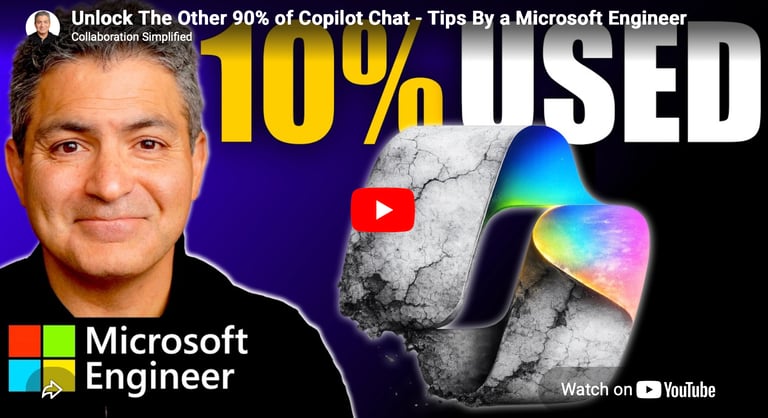
Want to find out more? Watch the full video below.
Contact Us
Questions? Reach out anytime.
Phone
© 2020–Present Collaboration Simplified. All rights reserved.
Collaboration Simplified® is a registered trademark of Shervin Shaffie.