
How to Use VS Code and GitHub Copilot to Build a Copilot Studio Agent
Learn how to use VS Code and GitHub Copilot to build, refine, and deploy a Microsoft Copilot Studio agent using pro code tools — step by step.
VS CODEMICROSOFT COPILOT STUDIOGITHUB COPILOT
4/29/20266 min read
What Is Pro Code Development for Copilot Studio Agents?
Most Microsoft 365 Copilot agents are built inside Copilot Studio's visual interface. That works fine for a lot of scenarios, but there's a more powerful way to do it: using VS Code and GitHub Copilot to write, plan, and execute your agent's logic as code, then push it back to Copilot Studio.
Microsoft calls this pro code development. Instead of manually configuring every instruction and topic inside the Copilot Studio UI, you use GitHub Copilot Chat running in agent mode inside VS Code to do the heavy lifting. The result is a more sophisticated agent with cleaner instructions, better-structured topics, and a workflow that actually scales.
This tutorial walks through the full process: cloning a Copilot Studio agent into VS Code, using GitHub Copilot to plan and execute improvements, and syncing everything back to Copilot Studio.
Prerequisites
Before starting, make sure the following are in place:
VS Code installed on your machine
The Copilot Studio extension for VS Code
The GitHub Copilot Chat extension — this one is essential
A Copilot Studio agent already created and ready to work with
Optionally, the Skills for Copilot extension and a Microsoft Learn MCP server added to VS Code
Setting this up takes some time, but once everything is configured, the workflow gets a lot faster.
Step 1: Move Your Agent from Agent Builder to Copilot Studio
If your agent was originally built in the M365 Copilot Agent Builder, the first step is migrating it into Copilot Studio so it can be used with pro code tools.
Inside the Agent Builder, open the agent, go to the three-dot menu, and choose the option to copy it to Copilot Studio. Select your environment and confirm. The icon, description, instructions, and prompts all transfer over automatically.
Once it's in Copilot Studio, this is also a good time to:
Rename the agent to reflect its new purpose
Select your preferred model. Claude Sonnet 4.6 is worth trying if it's available in your tenant, especially for tasks that involve reasoning
Enable WorkIQ if it appears in your agent settings (it's off by default). WorkIQ is currently in preview and gives the agent access to signals from emails, meetings, chats, files, and business systems. Think of it as an amplified version of the Microsoft Graph
Step 2: Add MCP Servers and Configure Your Trigger
While still in Copilot Studio, add the tools your agent will need before moving to VS Code. Adding them here first avoids authentication issues that can come up when trying to connect authenticated services directly from VS Code.
Under the Tools section, add the relevant MCP servers. For an agent that handles email workflows, useful options include:
WorkIQ Teams for sending Teams messages
WorkIQ Mail for reading and replying to emails, including the ability to create drafts instead of sending automatically
WorkIQ Word for creating and editing Word documents
WorkIQ OneDrive for saving files to specific folders
Each MCP server comes with a set of built-in tools, so adding one server unlocks multiple capabilities at once.
Next, add a trigger. For an email-based agent, choose "When a new email arrives" and filter it to a specific sender. This keeps the agent focused so it only activates for the emails that matter, not everything in the inbox.
Step 3: Clone the Agent into VS Code
With the agent configured in Copilot Studio, it's time to bring it into VS Code.
Open VS Code and go to the Copilot Studio extension in the left sidebar. Choose Clone an Agent, pick your environment, and select the agent. When prompted for a destination, create a new local folder and name it after the agent. VS Code will download a local copy of everything: instructions, actions, topics, and workflow files.
Once the clone is complete, the Explorer panel shows the agent's full structure. The Actions folder contains all the MCP tools that were added in Copilot Studio. The agent manifest file holds the current instructions, including the general guidelines and skills defined when the agent was originally built.
Step 4: Initialize the Agent in GitHub Copilot Chat
Switch to GitHub Copilot Chat on the right side of VS Code and set the mode to Agent. Agent mode gives GitHub Copilot the ability to read, edit, execute, and search, which is what this workflow requires.
In the chat input, type:
/init
This tells GitHub Copilot to scan everything that was cloned, including all the files, instructions, and structure, and build a workspace understanding of what the agent does and how it's organized. It will generate a .github/copilot-instructions file that captures key patterns and notes.
When it presents file changes, review and accept them. This initialization step is the foundation everything else builds on.
One thing worth noting: any time you add a new tool or make changes in Copilot Studio and sync them down, run /initagain so GitHub Copilot has an accurate picture of the current state.
Step 5: Plan the Agent's New Behavior
With the agent initialized, the next step is planning. This is where the pro code approach really shines.
Type /plan followed by a clear description of what the agent should do. Be specific about:
When it should activate (for example, Monday through Friday only, for emails from a specific person)
What it should do with attachments (save to OneDrive in a dated, named folder)
How it should process documents (edit them based on the email's expectations and knowledge sources)
How it should respond (reply via email with the revised document attached, save a draft if preferred)
How it should notify (send a Teams message summarizing what was done)
Formatting requirements (for example, require HTML formatting for professional email replies)
GitHub Copilot Chat will ask clarifying questions before finalizing the plan. Things like whether weekend emails should be ignored or queued, whether Teams notifications should go to a channel or a direct message, and whether both the original and revised document should be saved. Answer each question, and it will incorporate those decisions.
The result is a detailed, multi-phase plan saved as a plan.md file. Review it, make any adjustments by simply typing them into the chat, and confirm when it looks right.
Step 6: Execute the Plan
Once the plan is confirmed, instruct GitHub Copilot to execute it. Simply tell it 'Let's execute the plan'
GitHub Copilot will work through each phase, modifying workflow files, updating instructions, and creating new topics, including a full conversation topic for the trigger scenario. It will show file changes as it goes, with indicators showing lines added and removed.
For each change, VS Code will prompt for approval. In a production or development environment, review each change carefully before accepting. For faster iteration in a demo or test environment, the Autopilot (preview) option under Default Approvals will allow GitHub Copilot to iterate from start to finish without stopping for confirmation at each step.
When complete, GitHub Copilot will confirm all phases are done and list a summary of everything it changed.
Step 7: Push Changes Back to Copilot Studio
The changes made in VS Code are local until pushed back to Copilot Studio. In the Copilot Studio extension panel at the bottom of VS Code, use the up arrow to sync everything back to the cloud.
Once the push is complete, return to Copilot Studio and refresh the browser. The differences will be visible immediately, updated instructions with new logic, new sections for document handling and HTML email formatting, and a newly created topic for the email processing workflow, complete with trigger conditions, generative answers, and conditional logic.
Step 8: Connect and Test
Before testing, go to Manage Connections in the Copilot Studio test panel and confirm that all tools show as connected. The first time through, some may show as disconnected even if they were set up earlier, simply reconnect each one.
To test the full flow, use Test Trigger from the three-dot menu on the trigger. Select a relevant email and start the test. Copilot Studio will walk through every step of the agent's execution in real time.
When the agent finishes, verify the results:
The email reply should arrive in the sender's inbox, professionally formatted in HTML, with the revised document attached and a OneDrive link included
The OneDrive folder should contain both the original and the revised document, organized by date and sender name
A Teams message should have been sent summarizing the completed actions
If there are errors during testing, copy the error output from the test panel and paste it back into GitHub Copilot Chat in VS Code with a request to improve the agent based on that feedback. This feedback loop is one of the most valuable parts of the pro code workflow.
Why This Approach Is Worth It
The VS Code and GitHub Copilot workflow requires upfront setup, but the payoff is significant. Rather than manually writing and organizing every line of agent instructions inside Copilot Studio's interface, GitHub Copilot handles the structure, the logic, and the edge cases — and does it faster and more consistently than most manual authoring.
The /init → /plan → execute cycle gives a repeatable, auditable way to develop agents. The plan file serves as documentation. The file-level change tracking makes it easy to see exactly what was modified. And the ability to paste error messages back into the chat for debugging closes the feedback loop in a way that accelerates iteration.
For Microsoft 365 Copilot practitioners who want to build more capable, production-ready agents, this is the workflow to learn.
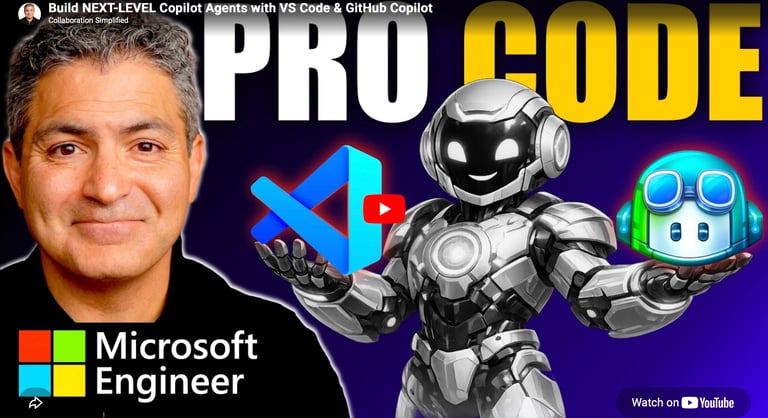
Want to find out more? Watch the full video below.
Contact Us
Questions? Reach out anytime.
Phone
© 2020–Present Collaboration Simplified. All rights reserved.
Collaboration Simplified® is a registered trademark of Shervin Shaffie.