
How to Use Claude and ChatGPT Inside Microsoft 365 Copilot
Microsoft 365 Copilot now lets you choose between Anthropic's Claude and OpenAI's ChatGPT. Learn how Frontier features work, what the Model Council does, and how to enable it for your organization.
MICROSOFT 365 COPILOTAI AGENTS
4/28/20263 min read
The Best of Both Worlds
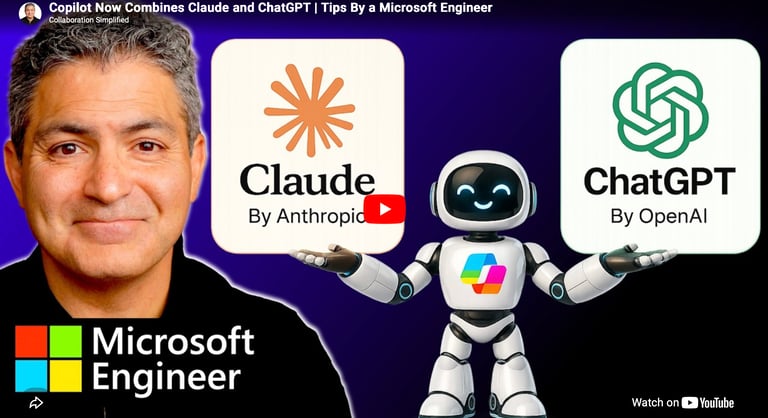
As of April 2026, Microsoft 365 Copilot gives you something genuinely new: the ability to choose which AI model powers your experience. Instead of being locked into one provider, you can now select between Anthropic's Claude (Opus) and OpenAI's ChatGPT, directly inside the M365 Copilot application.
These are called Frontier features, and they represent the cutting edge of what Copilot can do. If you don't see them yet, don't worry, more on how to enable them at the end of this post.
Choosing Your Model in Copilot Chat
When you open a new chat in Microsoft 365 Copilot, you'll notice a model selector in the top right corner. By default it's set to Auto, which means Copilot picks the best model for your request, balancing speed and depth automatically.
With Frontier features enabled, you now have additional options including Opus by Anthropic (Claude) and several GPT models by OpenAI. You can select whichever model you want for any given conversation.
To put this through its paces, here's a prompt worth trying, using your recent meetings, notes, and emails about an active project, ask Copilot to generate three things at once:
A one-page executive Word document
A five-slide PowerPoint deck
An Excel tracker with open action items
The results come back as linked documents you can open directly. It's a practical test of how each model handles real workplace content, and a good way to start forming your own opinion about when Claude versus ChatGPT works better for you.
Researcher Mode — Where It Gets Really Interesting
The model choice becomes even more powerful inside Researcher, Copilot's deep research mode. Here you have two distinct options beyond Auto:
Auto mode (also called Critique) In this mode, GPT drafts the initial research response and Claude reviews it for accuracy, completeness, and citation integrity before it's delivered to you. Think of it as OpenAI writing the first draft and Anthropic fact-checking it. They work in collaboration rather than in competition.
Model Council This is where things get particularly useful. Model Council runs your prompt simultaneously across multiple AI models and then synthesizes the results, showing you where GPT and Claude agree, where they disagree, and what each model uniquely contributed.
For example, running a competitive analysis prompt through Model Council produces side-by-side reports from GPT and Claude. The synthesis section then breaks down the top areas of agreement between the two models, what each brought to the table that the other didn't, and the specific areas where they reached different conclusions.
For research tasks where accuracy and completeness really matter, this is a meaningful step forward. Having two frontier models cross-checking each other, and being able to see exactly where they diverge gives you a much stronger foundation than any single model response.
What About Data Security?
A reasonable question when third-party AI providers are involved. The good news is that when you use Claude inside Microsoft 365 Copilot, Anthropic operates as a Microsoft sub-processor, meaning your data stays under Microsoft's enterprise data protection framework, covered by contractual safeguards and technical controls.
You'll see the familiar green security shield remain active whether you're using Claude in chat, Auto mode in Researcher, or Model Council. Your organization's data doesn't leave Microsoft's protected environment.
How to Enable Frontier Features
If you're an IT admin, or need to share this with yours. Here's how to turn on Frontier features for your organization:
Go to the Microsoft 365 Admin Center
Select Copilot from the menu, then Settings
Choose View All and scroll down to Copilot Frontier
Choose whether to enable it for all users, specific users, or no one
While in Settings, find the AI Providers section. This is where Anthropic is listed as a sub-processor. Make sure it's enabled for the users who need it.
One important note for European organizations: Anthropic as an AI provider is off by default in EU tenants due to data residency requirements. You'll need to manually enable it in the AI Providers section.
Which Model Should You Use?
Honestly, the best answer right now is to experiment. Both models have different strengths and the right choice depends on your specific task and prompt. What's significant is that Microsoft has made this choice available to you at all inside a single, enterprise-secured application.
Want to find out more? Watch the full video below.
Contact Us
Questions? Reach out anytime.
Phone
© 2020–Present Collaboration Simplified. All rights reserved.
Collaboration Simplified® is a registered trademark of Shervin Shaffie.