
Copilot Cowork: Microsoft's Latest AI Automation Tool
Copilot Cowork is Microsoft's latest AI automation tool that goes beyond chatbots to handle scheduling, document creation, and more autonomously. Here's how it works.
MICROSOFT 365 COPILOTAI AGENTSANTHROPIC CLAUDE
5/3/20266 min read
What Is Copilot Cowork?
Copilot Cowork is a major step forward in how Microsoft 365 Copilot handles your work. Rather than simply answering questions or generating text, Cowork takes action on your behalf. It sends emails, schedules meetings, creates documents, posts in Teams, manages your calendar, and handles multi-step tasks across your Microsoft 365 environment.
The key distinction is straightforward: most AI tools describe what you could do. Cowork does the work.
It is currently available as part of Microsoft's Frontier preview program, which gives early access to Microsoft's latest AI innovations. If you have a Microsoft 365 Copilot license and want to try it, enrollment in the Frontier program is the first step.
How Copilot Cowork Is Built
Cowork combines two powerful technologies to handle your work with context and intelligence.
The first is Anthropic's Claude, which powers the reasoning and language capabilities inside Cowork. When setting up a conversation, you can choose between Claude Sonnet and Claude Opus 4.6, both of which are Anthropic models integrated into Microsoft 365 as an official subprocessor, meaning the integration meets Microsoft's security and compliance standards.
The second is Microsoft's Work IQ, the intelligence layer that gives Cowork access to your organizational data and context. Through Work IQ, Cowork can reach across your Microsoft 365 environment to find relevant files, emails, meetings, contacts, SharePoint sites, Teams channels, and more. This is what allows Cowork to do genuinely personalized work rather than generic responses.
Where to Find Copilot Cowork
Cowork is available through the Microsoft 365 Copilot app at m365.cloud.microsoft, as well as in the Copilot desktop app for Windows and Mac. It also works inside Outlook and Teams. Mobile support is not yet available.
To get started, look for Cowork in the Copilot app's sidebar. If it is not immediately visible, it can be found through the agent store by searching for "Cowork." Once added, it can be pinned for quick access.
The home screen presents a prompt area where tasks can be described in natural language, with up to 16,000 characters supported. Suggested starting points like "Catch me up," "Organize my inbox," "Organize my week," and "Prep for a meeting" are available to help you jump right in. Files can also be attached by dragging them into the chat or by connecting to OneDrive, SharePoint, or Teams.
The Skills System: What Makes Cowork Different
One of the most important things to understand about Cowork is its skills architecture. Skills are specialized capabilities that Cowork loads automatically based on what your task requires. You do not need to call them out manually, though slash commands are available as shortcuts if you prefer them.
Cowork ships with 13 built-in skills:
Word: Create and edit Word documents
Excel: Create and edit spreadsheets
PowerPoint: Build and modify presentations
PDF: Work with PDF documents
Email: Compose, reply, forward, and send emails, with draft and attachment management
Scheduling: Set up meetings using natural language
Calendar Management: Add events, move things around, add Teams meeting links, and manage conflicts
Meetings: Prepare meeting intelligence and insights
Daily Briefing: Start your day with a summary of what is ahead
Enterprise Search: Search across your entire organization
Deep Research: Conduct in-depth research across multiple sources and compile comprehensive reports
Communications: Draft polished stakeholder communications
Adaptive Cards: Generate interactive card-based responses with structured layouts and data displays
As Cowork works through a task, the side panel updates in real time to show which skills are active. This transparency lets you follow along at every step.
Standard Copilot Chat gives you access to people, files, meetings, and emails as context. Cowork goes further by adding this entire skills layer, which is the fundamental difference between Cowork and any other Microsoft 365 tool available today.
You Stay in Control Throughout
Before Cowork takes any significant action, it asks for your approval. A dialog shows exactly what it plans to do, and for medium and high risk actions, a risk level indicator is included so you can gauge the impact before deciding.
The approval button label always matches the specific action, for example "Send," "Post," or "Create." A dropdown option allows you to skip future approval prompts for similar actions within the same conversation if you are comfortable with the flow. At any point, an action can be cancelled and Cowork will move on without it.
Beyond individual approvals, Cowork gives you full control of the conversation. There are two pause modes: a soft pause that lets the current step finish before stopping, and a hard pause that stops immediately. Resuming picks up exactly where things left off. Cancelling clears the task entirely so a new direction can be set.
If something new comes to mind while Cowork is already working, additional messages can be sent and they are queued automatically. Cowork adjusts its approach if the new message changes the direction of the task.
Organizing Your Week: Cowork in Action
Asking Cowork to help organize your week is a great way to see the full experience in action. It scans your calendar, pulls context about the people you work with, and before proposing any changes, asks you focused questions to understand your priorities.
It might ask whether a blocked multi-day period means you are fully out of office or partially available. It might flag a meeting that runs unusually late and offer to shorten it, move it, or leave it as is. It will ask about your primary goal for the week and your preferred scheduling style.
Once that feedback is provided, Cowork returns a ranked list of proposed changes organized by impact level. Each change comes with a clear explanation of why it is being suggested. From there, specific actions are approved one at a time. Calendar updates, Teams meeting invitations, and new meeting slots all require a confirmation before anything is changed.
Documents and Presentations, in the Same Conversation
One of the most powerful aspects of Cowork is that a single conversation can span multiple types of work without starting over. After organizing a calendar, a Word document can be attached and Cowork will review it, apply feedback, and save an updated version to OneDrive. A summary of every change made is provided alongside the output file.
From there, a request like "create a five-slide PowerPoint based on that document" triggers the PowerPoint skill automatically. The presentation is generated, saved, and available to preview directly inside Cowork, download to a device, or open in PowerPoint online.
All output files are saved to a dedicated Cowork folder in OneDrive. When multiple files are produced in a single session, everything can be downloaded at once as a zip archive.
Scheduling Autonomous, Recurring Activities
This is where Cowork moves fully into agentic territory. Rather than handling one task at a time, recurring activities can be scheduled to run automatically without any manual trigger.
For example, Cowork can be instructed to check every morning for new communication from a specific colleague about a project and post a Teams message with suggested next steps as soon as something comes in. Cowork confirms the schedule based on the request, for instance every day at 8 a.m. local time, and once activated, the task runs continuously in the background.
Scheduled prompts are managed through the Scheduled tab in the Tasks view, or from the side panel. Each scheduled prompt can be edited, paused, resumed, or deleted at any time.
This capability shifts Cowork from a tool used reactively to one that participates actively in the flow of your work, monitoring, analyzing, and acting even when attention is elsewhere.
Custom Skills: Extend Cowork for Your Workflow
Beyond the 13 built-in skills, Cowork supports custom skills that you create yourself. A custom skill is a Markdown file stored in a specific OneDrive folder that tells Cowork how to handle a particular type of task your way.
To create one, add a subfolder inside /Documents/Cowork/Skills/ in your OneDrive, for example /Documents/Cowork/Skills/weekly-report/, and place a SKILL.md file inside it. The file includes a name, a description, and plain-language instructions for how Cowork should approach that task. Cowork discovers custom skills automatically at the start of each new conversation.
Up to 20 custom skills are supported, each with a file size limit of 1 MB.
You Can Step Away While It Works
Because Cowork is a cloud-based application, there is no need to stay on the page while a task is running. The app can be minimized, switched away from, or closed entirely. When returning, any in-progress task is waiting in the Tasks panel and can be picked up immediately.
The Tasks panel shows the full history of conversations with Cowork, each with a status: In Progress, Needs User Input, Done, or Failed. Tasks can be viewed as a list, a Kanban board organized by status, or through the Scheduled tab for recurring prompts.
A Few Things to Know Before You Start
There are some limitations worth being aware of. Cowork works with files in OneDrive and SharePoint, not files stored locally on your device. It cannot delete files or folders in OneDrive or SharePoint. Attached files must be under 200 MB, and encrypted files cannot be read even if access has been granted. Mobile support is not yet available.
These are current constraints of the preview and may change as Cowork moves toward general availability.
Why Copilot Cowork Is Worth Paying Attention To
The combination of Anthropic's Claude models, Microsoft's Work IQ intelligence layer, and a 13-skill architecture designed for real action creates something meaningfully different from what has come before in Microsoft 365. Whether the goal is optimizing a chaotic week, refining a document before a key meeting, building a presentation, or setting up monitoring that runs every day, Cowork is built to reduce the coordination overhead that quietly consumes so much of a modern workday.
If you have a Microsoft 365 Copilot license, joining the Frontier preview program is the way to get early access and start putting it to work.
For Microsoft 365 Copilot practitioners who want to build more capable, production-ready agents, this is the workflow to learn.
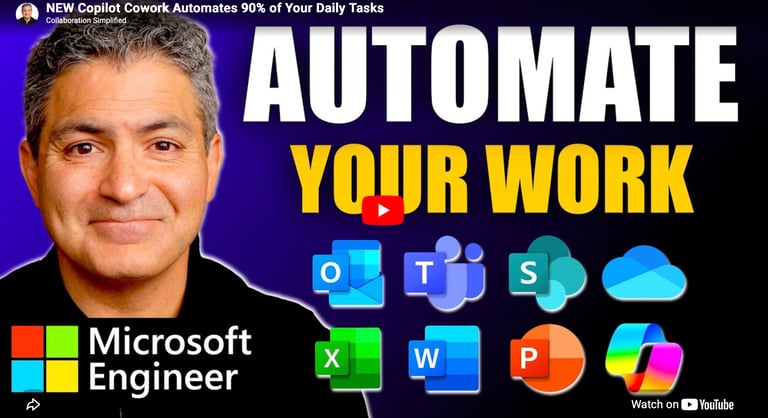
Want to find out more? Watch the full video below.
Contact Us
Questions? Reach out anytime.
Phone
© 2020–Present Collaboration Simplified. All rights reserved.
Collaboration Simplified® is a registered trademark of Shervin Shaffie.